CDE Quick Start
CDE, namely Chatbot Development Env, is a developer tool released by Chatopera cloud service for developers. Use CDE to customize the conversational skills of the chatbot and improve its intelligence.
Overview of the installation process
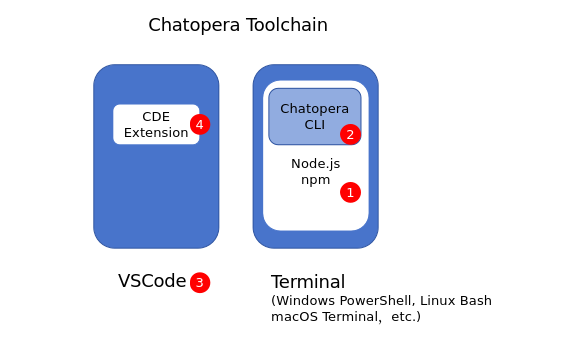
- Install Node.js: To use CDE, you need to combine it with Chatopera CLI. To install CLI, you need Node.js.
- Install Chatopera CLI: After installing and configuring Node.js, use the
npmcommand to install it in the console - Install VSCode: CDE is a VSCode plug-in, so you need to install VSCode first
Get help
When you encounter any problems during the novice tasks, you are welcome to contact Chatopera engineers for help and support~
Install Node.js
Download the installation package
You need to use Node.js v18 or higher, download the installation package from Nodejs official website. Node.js installation packages support different forms, and it is recommended to use independent installation packages.
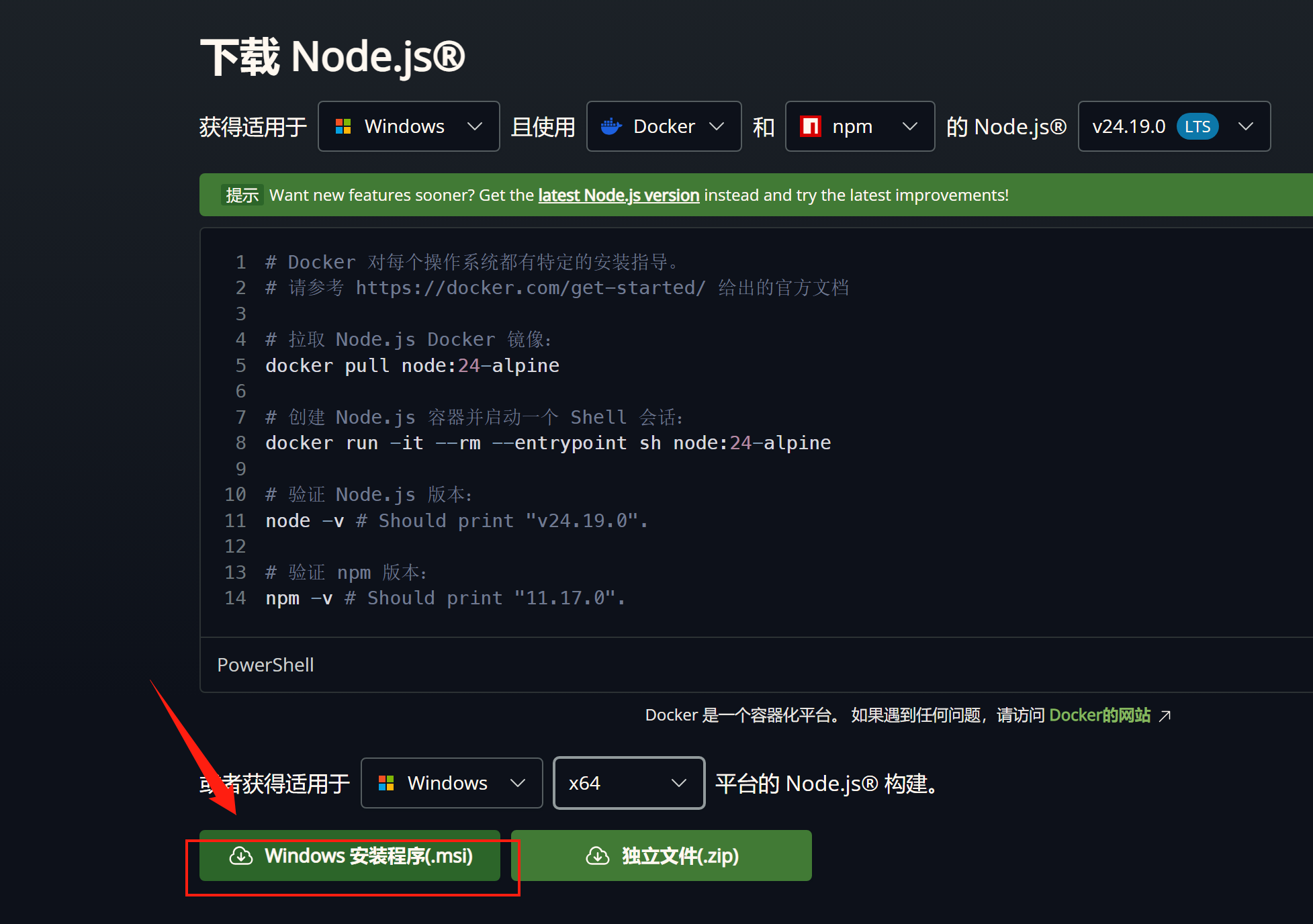
For example, MSI installation package for Windows platform.
After downloading, open the installation package, perform the installation, and pay attention to setting environment variables.
Set environment variable Path
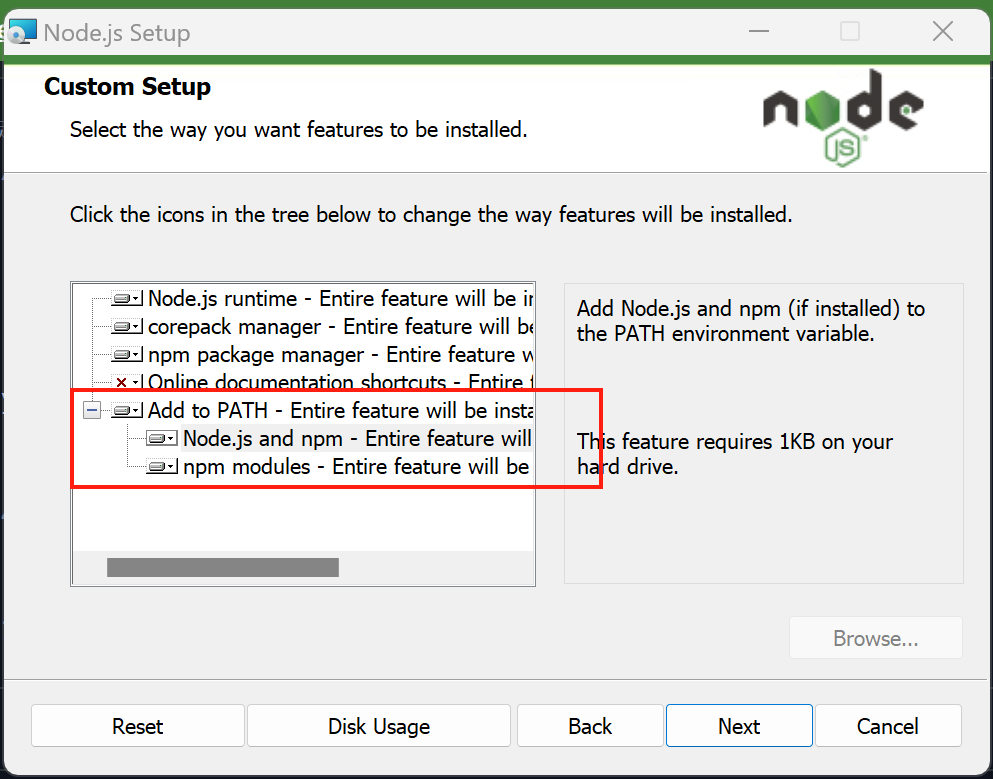
During the installation process, set the following options.
Set Node and npm to the Path environment variable.
Check installation
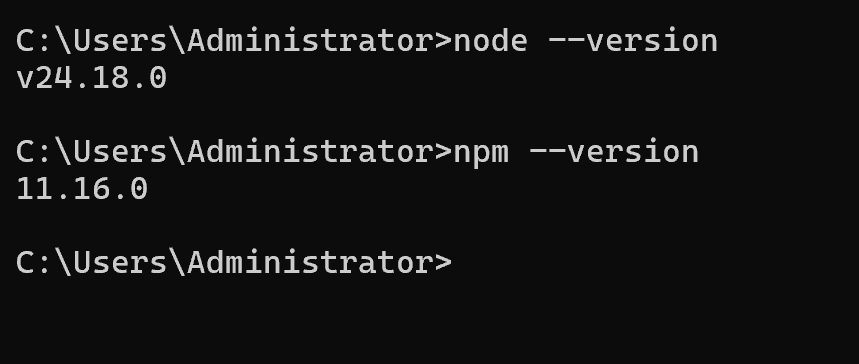
After the installation is complete, check whether the installation was successful.
Mac/Linux users: Start a command line console, execute
echo $PATH, check whether the installation path of node is inPATH, and then executenode --versionandnpm --versionto confirm whether the installed version is correct.Windows users: Start a CMD Prompt, execute
echo %Path%to check whether the installation path of node is inPath, and then executenode --versionandnpm --versionin CMD to confirm whether the installed version is correct.
Install Chatopera CLI
After installing Nodejs, execute the following command in the command line terminal:
npm install -g @chatopera/sdk
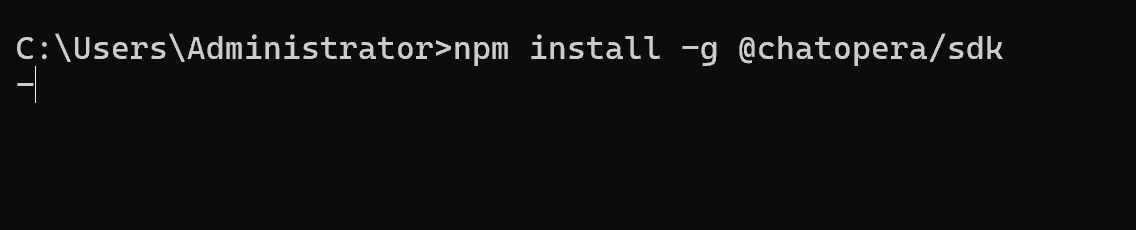
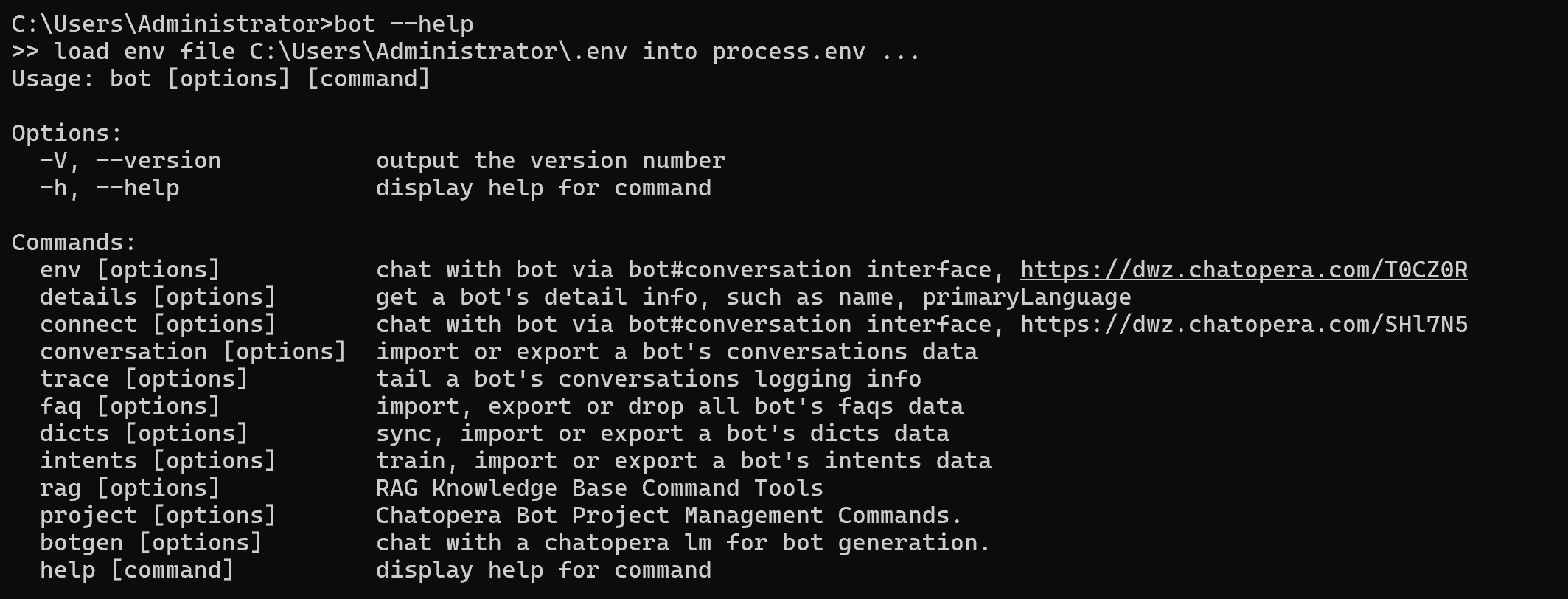
After the above command exits, execute the following command to test whether the installation is successful:
bot --help
If you can see the following output, it means that the Chaopera CLI has been installed successfully.
Install VSCode
Enter the VSCode official website: https://code.visualstudio.com/Download
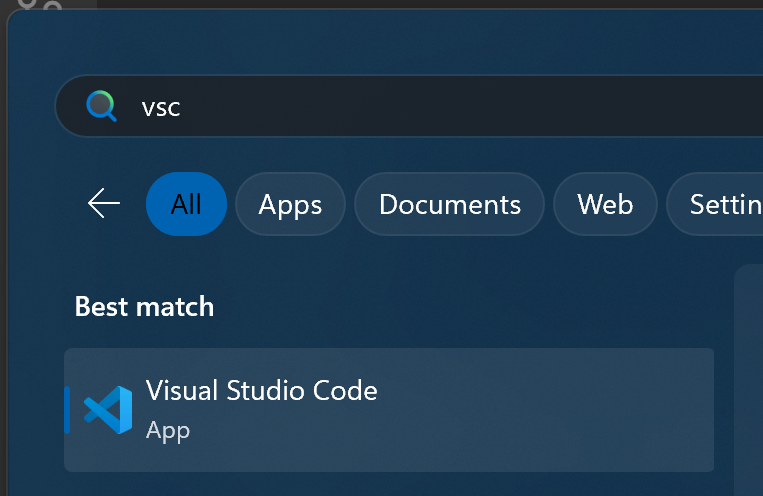
Download the installation package for your operating system and install it. After successful installation, you can find VSCode in the Start Center.
Install CDE plug-in
Open VSCode and install the following image:
Enter plug-in management
Search for
chatbot-dev-envClick the Chatopera icon to enter the plug-in details
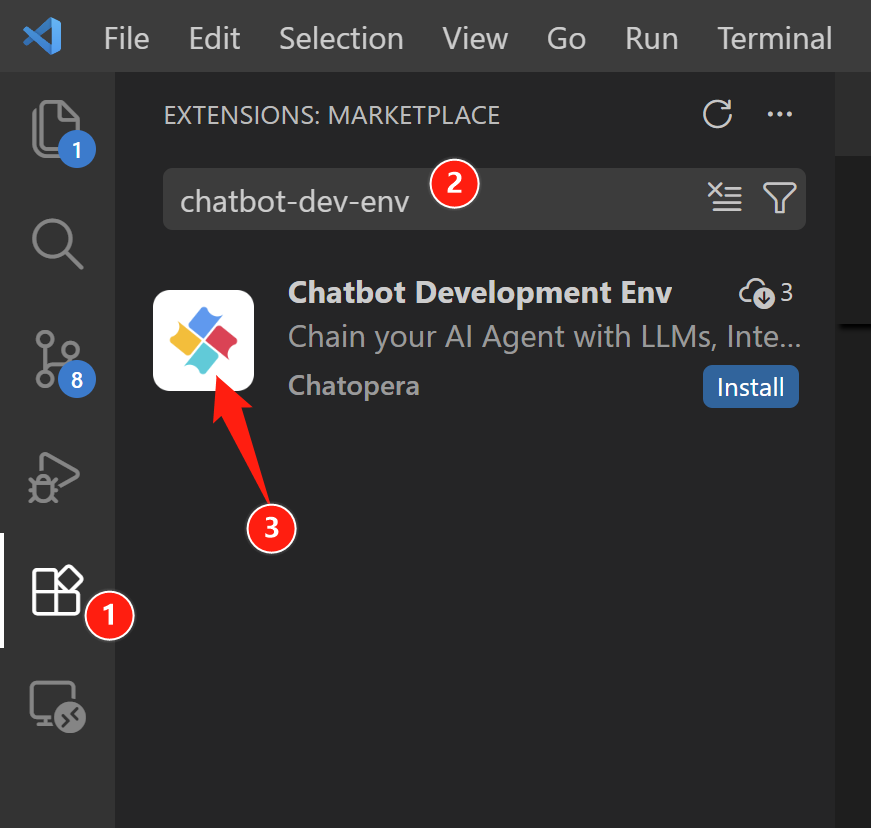
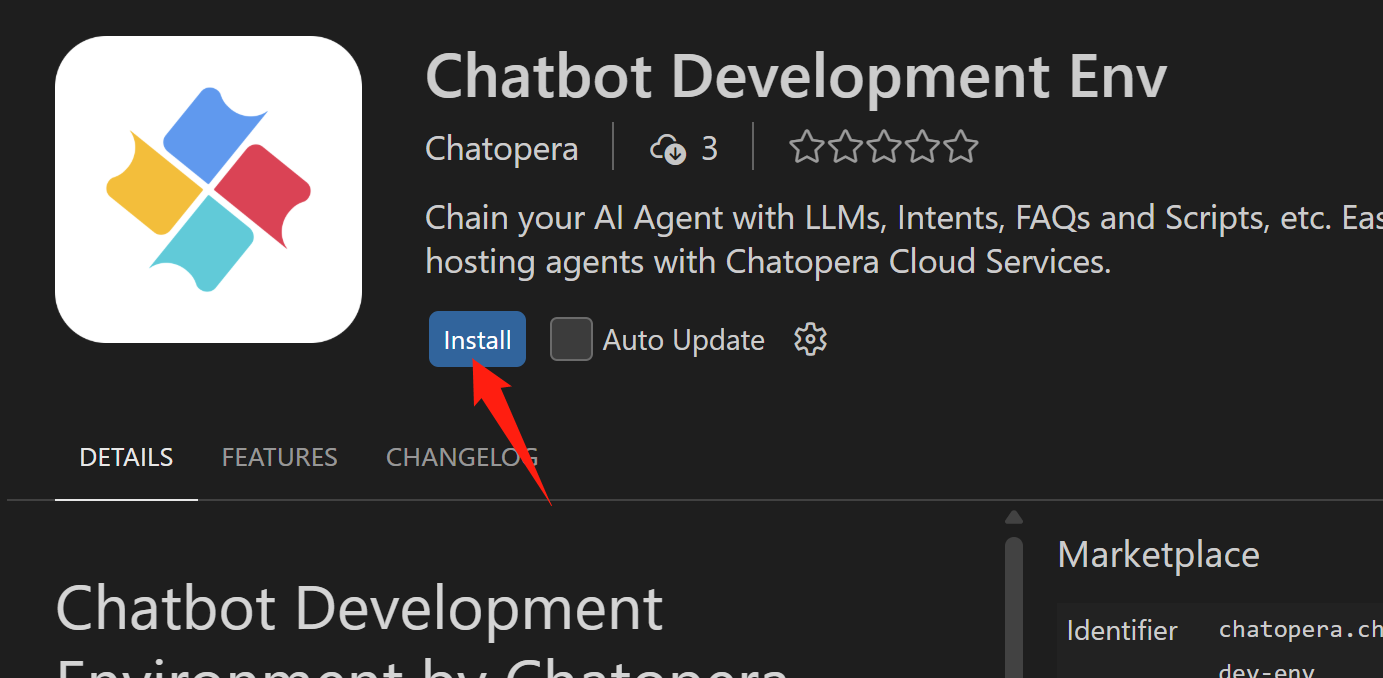
- Click
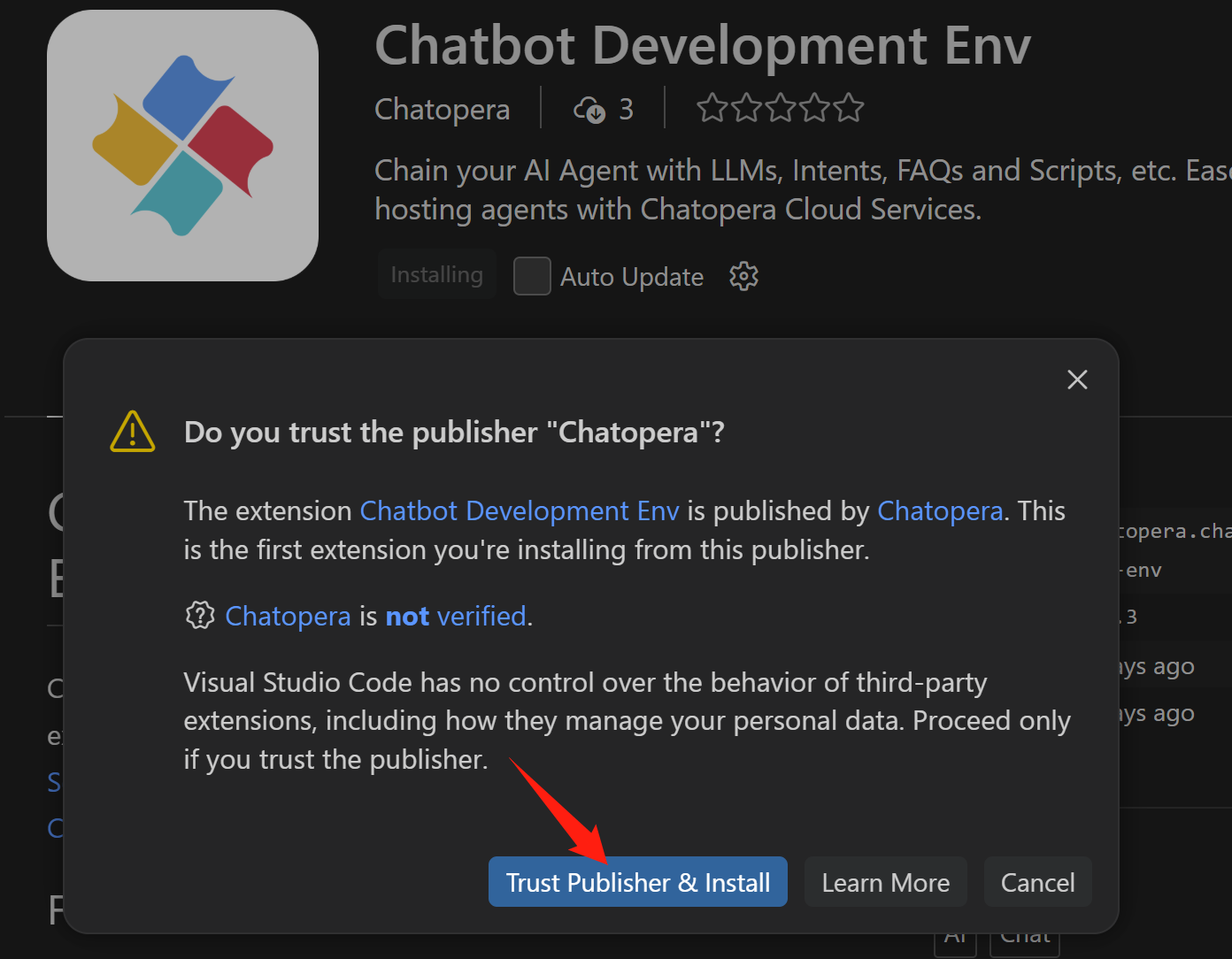
Install/Install
- Click [Trust]
After installation, you can see the CDE plug-in icon on the left.
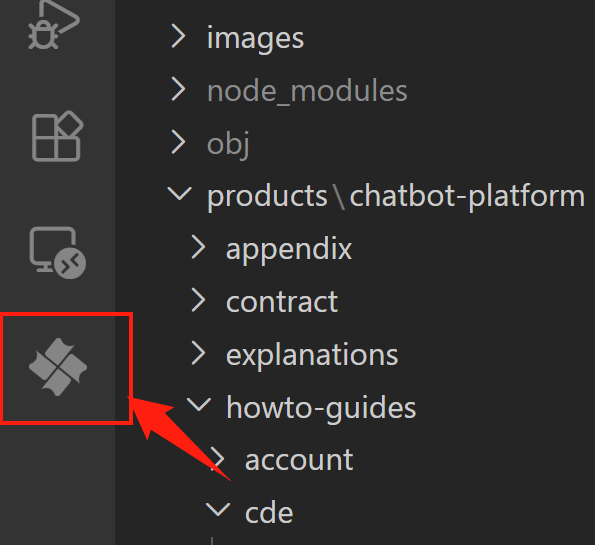
The installation is completed.
Next step
- For specific use of CDE, refer to: Introductory Tutorial
- When the Chatbot is released, it can be integrated into other software using SDK/API, reference: Chatopera SDK and APIs